Outlook Distribution List Guide
How to Create a Distribution List in Outlook
Outlook uses different names for the same idea: Contact Groups (desktop), Contact Lists (web), and Distribution Lists (Microsoft 365 admin). An Outlook distribution list helps you email multiple people at once using one saved group name.
But the steps to set them up vary between versions, which can be frustrating. This guide shows the setup flow for each version and where Outlook starts to fall short for ongoing group communication.
Think of this as a companion to our guide on what a listserv is and how modern group email tools have replaced them.
How to Create a Contact Group in Outlook Desktop (Classic)
In classic Outlook desktop, the feature is called a Contact Group (older versions called it a distribution list).
Step 1: Go to People
Open Outlook and click the People icon in the bottom-left navigation bar (it may look like two silhouettes). This opens your contacts view.
Step 2: Create a New Contact Group
Click New Contact Group in the ribbon at the top. A new window will open.
Give your group a name in the Name field - something descriptive like "Book Club," "Board Members," or "Project Team."
Step 3: Add Members
Click Add Members in the ribbon. You will see three options: from Outlook Contacts, from your Address Book, or by typing a new email address.
Pick the method that works for you and add everyone you want in the group. You can mix and match - some from your existing contacts, some typed in manually.
Step 4: Save and Close
Click Save & Close. Your new contact group now appears in your contacts list and is ready to use.
Step 5: Send an Email to the Group
To email the group, start a new message and type the group name in the To field. Outlook will suggest the contact group - select it, and all the member addresses are filled in automatically.
How to Create a Contact List in Outlook on the Web
If you use Outlook through a browser - at outlook.com or outlook.office.com - Microsoft calls them Contact Lists here rather than "Contact Groups."
Step 1: Open People
Click the People icon in the left sidebar (or navigate to outlook.com/people). This opens your contacts view.
Step 2: Create a New Contact List
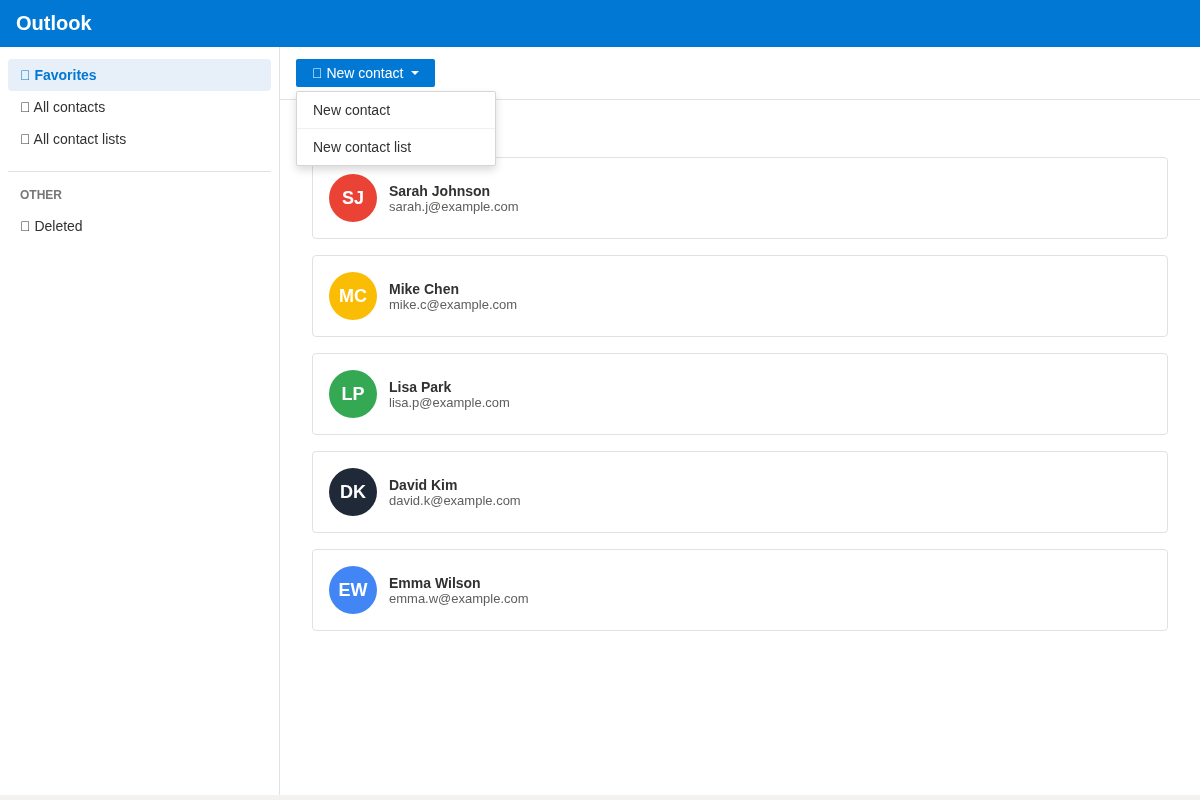
Click the dropdown arrow next to New contact at the top of the page, then select New contact list.
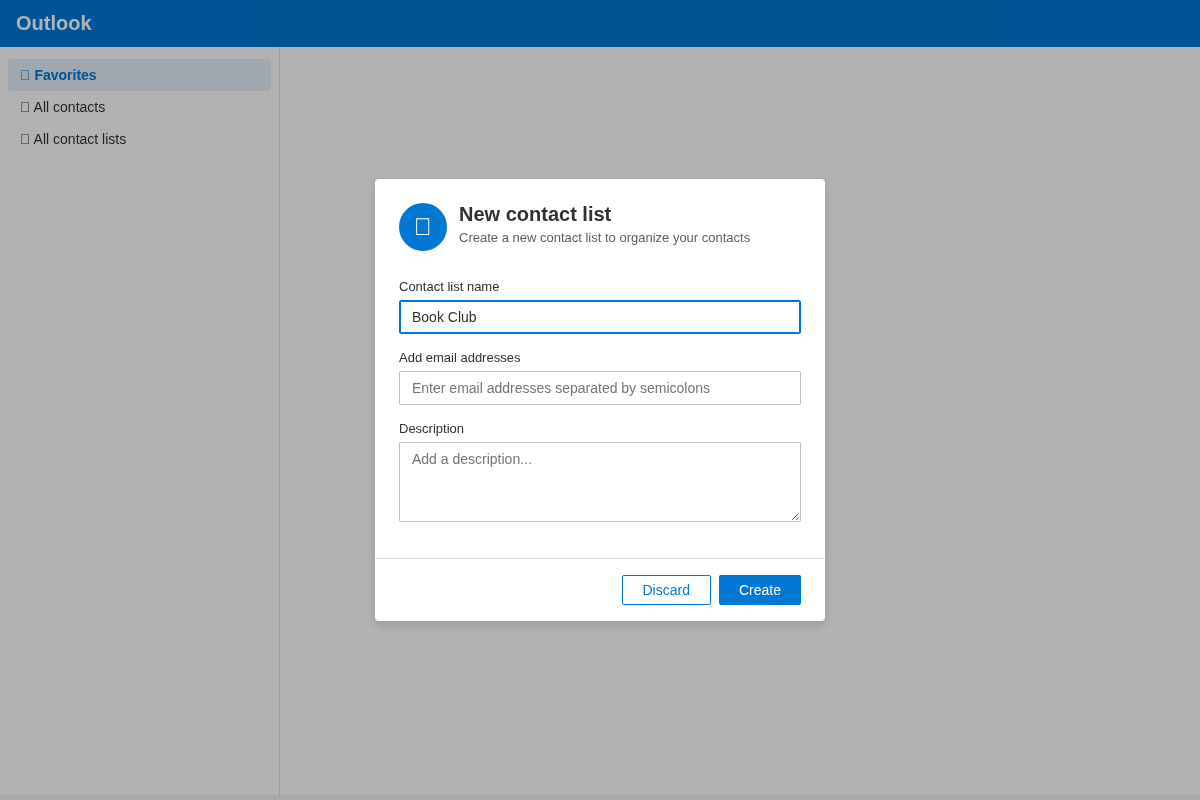
A dialog will appear asking for a name and email addresses.
Step 3: Add Members and Save
Type a name for the list (for example, "Book Club"), then add email addresses in the field below - separated by semicolons. You can also add an optional description.
Click Create. Your contact list is now saved and ready to use.
Step 4: Email the Group
Compose a new email and start typing the name of your contact list in the To field. Outlook will suggest it as you type. Select it and all the addresses are populated automatically.
How to Create a Group Email in New Outlook for Windows
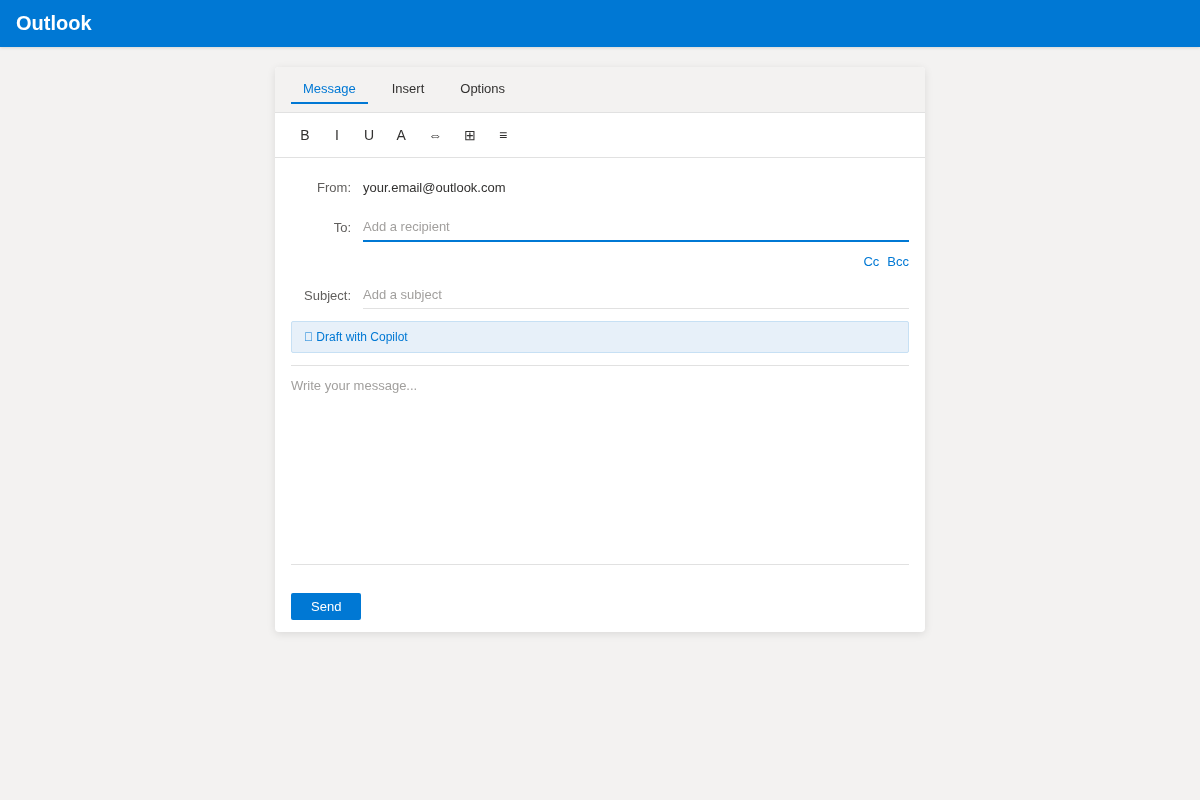
New Outlook follows almost the same flow as Outlook on the web: open People, choose New contact list, add members, and save. If UI labels shift, check the All contact lists area. The interface looks nearly identical to the browser version.
Microsoft 365 Admin Distribution Lists
If you are part of an organization that uses Microsoft 365 (formerly Office 365), there is another option: creating a distribution list through the Microsoft 365 admin center. This is a more formal setup that creates an actual group email address (like team@yourcompany.com).
How to Set It Up
- Sign in to the Microsoft 365 admin center - you will need admin privileges.
- Go to Teams & groups then Active teams & groups.
- Choose Add a group and select Distribution list.
- Set the group name and email address.
- Add members from your organization's directory.
- Configure settings like whether non-members can send to the group, and whether to allow external senders.
When to Use This Approach
This is really designed for organizations - companies, schools, and nonprofits - where the IT team manages email centrally. It requires admin access, which means most regular users cannot create these themselves. And it only works for people within your organization's Microsoft 365 tenant, which makes it a poor fit for external groups like clubs, communities, or volunteer teams.
If you are looking for something that works across different email providers and does not require admin access, you will want a different approach (more on that below).
How to Edit a Distribution List in Outlook
After you create a list, you will usually need to add or remove members over time.
- Open People in Outlook and find your contact group or contact list.
- Open the group, then choose Edit (or select the group name and edit members).
- Add new email addresses or remove old ones as needed.
- Click Save so the updated member list is used next time you send.
How to Delete a Distribution List in Outlook
If a group is no longer active, deleting it keeps your contacts clean and avoids sending mistakes.
- Go to People and locate the contact group or contact list.
- Select the group and choose Delete.
- Confirm the deletion when prompted.
- Create a new list later if your group restarts with a different membership.
The Limitations of Outlook Groups
Whichever method you use, Outlook's group email tools share some fundamental limitations once your group starts communicating regularly or grows beyond a handful of people.
- 500-recipient limit. Outlook imposes a limit of 500 recipients per email for consumer accounts (the limit is higher for some Microsoft 365 business plans, but still capped). If your group is approaching this size, you will start running into delivery failures.
- No self-service membership. Whether you are using a contact group, contact list, or admin distribution list, you or an admin have to manually add and remove members. People cannot join or leave the group themselves.
- No shared archive. There is no central place where group conversations are stored. Messages live in individual inboxes, and when someone new joins the group, they have no way to read past discussions or get context on what they have missed.
- Replies do not go to the group. Replies commonly go only to the original sender instead of the whole group. This means you end up forwarding replies manually or telling people to "reply all," which is unreliable and clunky.
- No moderation or digest options. You cannot review messages before they go out, set posting rules, or let members choose a daily or weekly digest.
- Version fragmentation. The process differs across Outlook desktop, Outlook web, New Outlook, and Microsoft 365 admin. If your members use a mix of these, you can spend time fielding questions about why things look different for everyone.
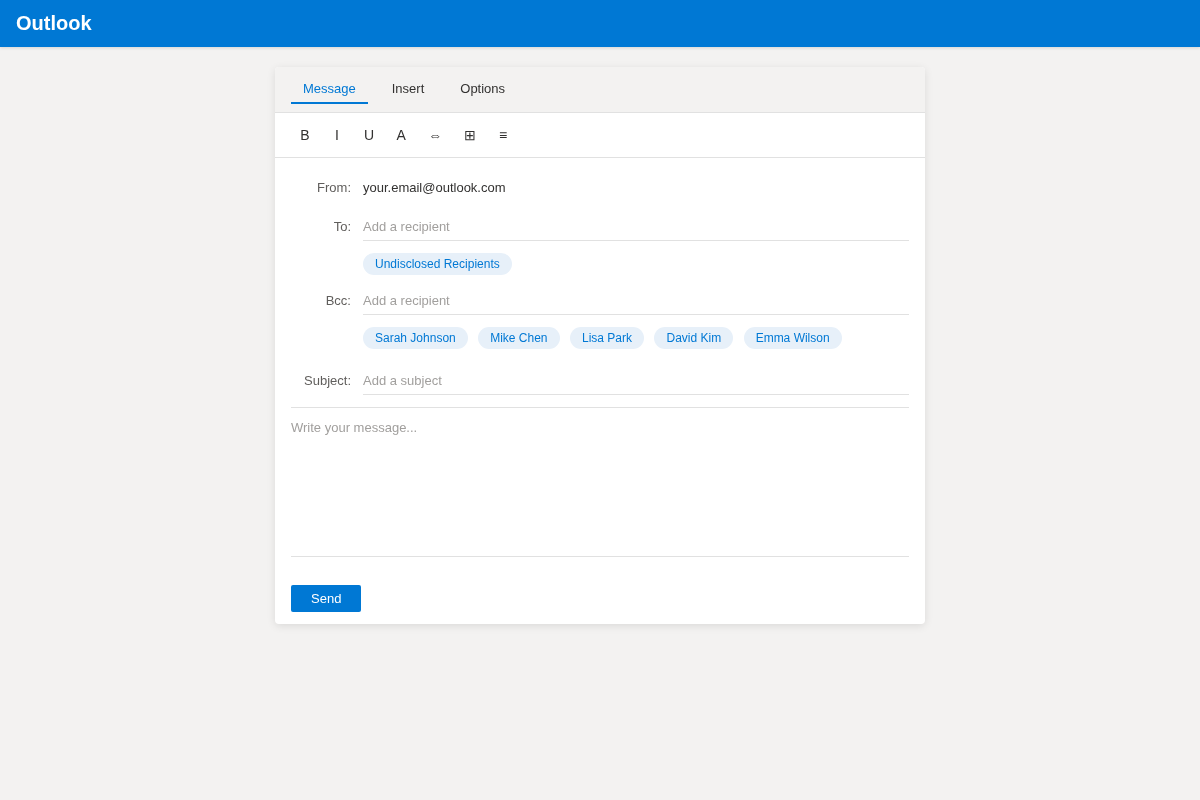
- The BCC workaround has its own problems. You can hide recipients with BCC, but replies only go back to you - not to the group.
When You Need Something Better
If your group needs replies that go to everyone, self-service membership, a shared archive, and proper privacy - without the complexity of Microsoft 365 admin setup - a purpose-built group email tool is the way to go.
Gaggle Mail
gives your group a single email address (like bookclub@gaggle.email) that works with any email client - Outlook, Gmail, Yahoo, Apple Mail, and more. No one needs to switch tools or create a new account.
Here is what you get that Outlook does not offer:
- Replies go to the whole group - or just the sender, depending on your preference.
- Members manage themselves - they can join and leave the group without admin updates.
- Privacy built in - member email addresses are not visible to other members.
- Shared archive - new members can browse past conversations and catch up quickly.
- Moderation - you can approve messages before they are sent to everyone.
- Digest emails - members can opt for daily or weekly summaries.
How Does It Compare?
| Feature | Gaggle Mail | Outlook Contact Groups | M365 Distribution Lists |
|---|---|---|---|
| Single group email address | ✓ | ✗ | ✓ |
| Replies go to group | ✓ (configurable) | ✗ | Partial |
| Self-service join/leave | ✓ | ✗ | ✗ |
| Member privacy | Yes, always | Only with BCC | Configurable |
| Shared archive | ✓ | ✗ | ✗ |
| Moderation | ✓ | ✗ | Basic |
| Digest emails | ✓ | ✗ | ✗ |
| Works with any email client | ✓ | Outlook only | Mostly Outlook |
| Requires admin access | ✗ | ✗ | ✓ |
| Easy to set up | Very easy | Moderate | Difficult |
See the full comparison of group email services. If you are replacing older tools, this also pairs well with our listserv alternative guide.
What to do next
Outlook contact groups and contact lists work for straightforward internal announcements, but they get hard to manage as groups grow or communication becomes ongoing. If you need reliable two-way group conversation, shared history, and easier member management, a dedicated group email platform is usually the better long-term option.
For a full breakdown of all group email platforms, see our comparison of group email services.
Try Gaggle Mail free and launch a group address that works across Outlook, Gmail, Yahoo, and Apple Mail.
Frequently asked questions
What people are saying
Join thousands of communities using Gaggle Mail
“Gaggle Mail transformed how our neighborhood association communicates. It's so intuitive that even our less tech-savvy members participate actively. The moderation tools are exactly what we needed.“

“Overall technical execution and ease-of-use make Gaggle Mail the best option in the market.“

“Solid, stable. Just works. Great interface. Works for everything we need.“

“Amazing alternative to google groups, which forces you to have a gmail account and is complex to join as a user.“

“Your service never fails and when we have questions, you respond immediately!“

“Outstanding service. Whenever we have a question or face an obstacle someone is there to assist.“

“It's straightforward. It works. No advertising banners. We love it!“

“The customer support is outstanding. Any questions we had while setting up our alumni network were answered promptly and thoroughly.“

“I love Gaggle Mail because I have never had a problem. It just works.“

“The migration from our old listserv was smooth and the interface is modern and clean. Our members adapted to it immediately.“

“I use it for a Boy Scout troop. I tried a couple of other applications and yours is by far the best.“