Gmail Group Email Guide
How to Create a Group Email in Gmail
If you regularly email the same group of people - a committee, a sports team, a neighbourhood association, a book club - you already know how tedious it is to type (or copy-paste) every email address each time. It is slow, error-prone, and sooner or later you will accidentally leave someone out.
The good news is that Gmail lets you create an email group in Gmail quickly, so you can make a group email in Gmail for repeat messages without retyping every address.
You can do this by creating a group email using contact labels. It takes a few minutes to set up, and after that you can email the whole group by typing a single label name.
In this guide, we will walk you through exactly how to do it. We will also cover when Gmail's built-in approach starts to fall short - and what to use instead if you are managing an ongoing group that needs things like replies, archives, or self-service membership.
How to Create an Email Group in Gmail Using Google Contacts
The easiest way to create a group email in Gmail is by creating a contact label in Google Contacts. A label is essentially a tag you attach to a set of contacts, and Gmail lets you email everyone with that label at once.
Here's how to set it up:
Step 1: Open Google Contacts
Head to contacts.google.com. Make sure you are signed in with the same Google account you use for Gmail. You will see a list of all your saved contacts.
If the people you want to group are not in your contacts yet, add them first. You can do this by clicking + Create contact.
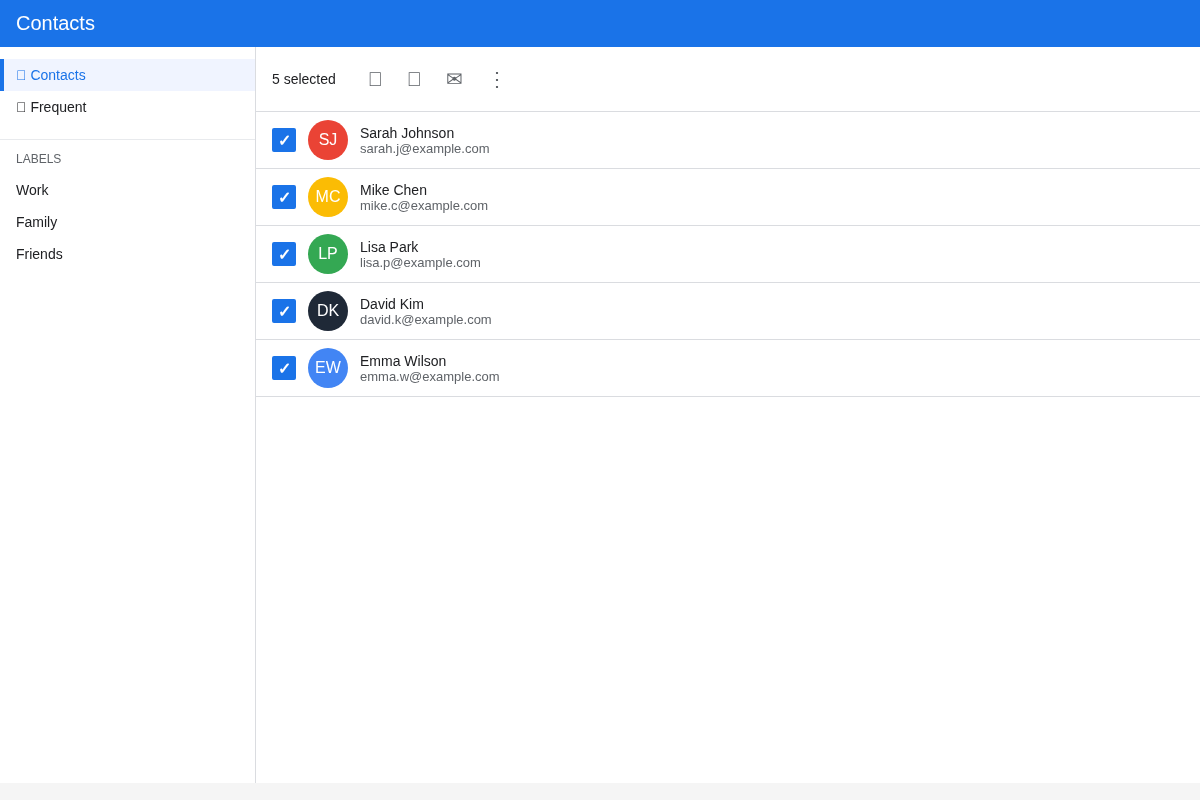
Step 2: Select the Contacts You Want to Group
Tick the checkbox next to each contact you want to include. You can select as many contacts as you need.
Step 3: Create a Label
With contacts selected, click Manage labels (tag icon), then click + Create label. Name it something clear, like "Book Club," "PTA Committee," or "Project Team," and click Save.
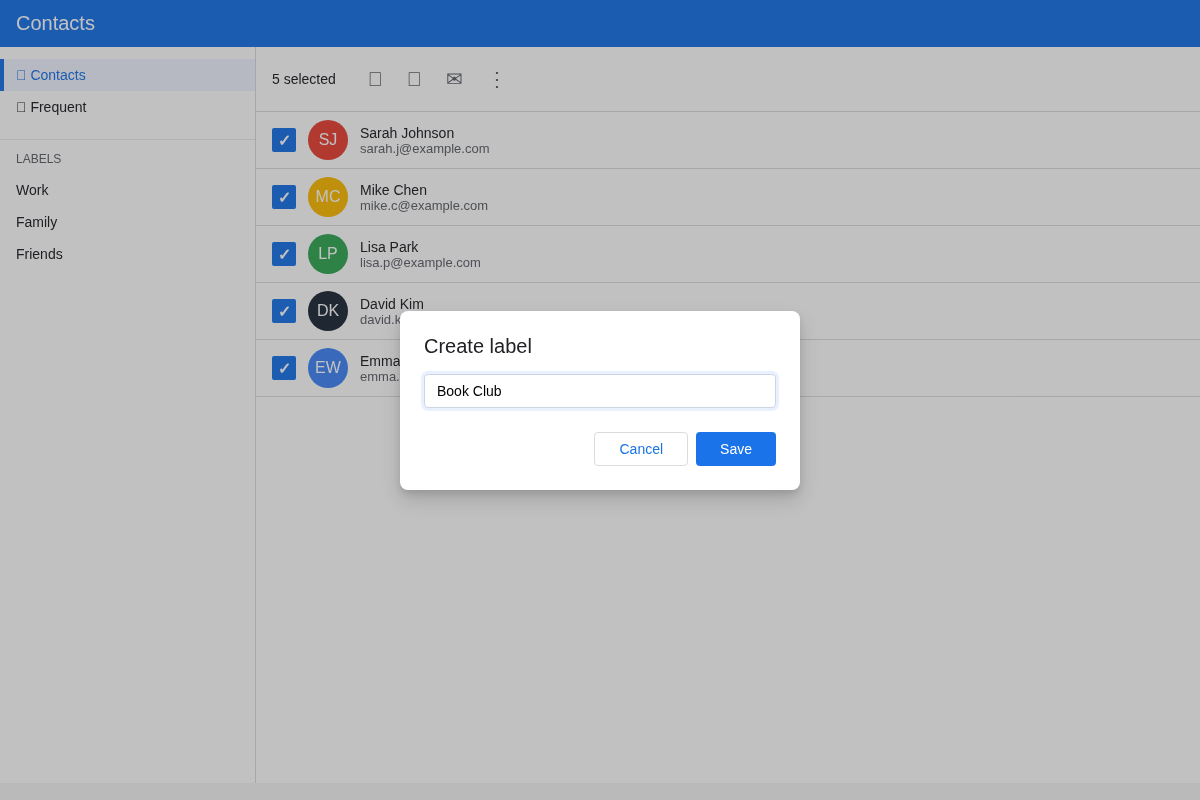
Your new label will now appear in the left sidebar under Labels. You can click it any time to see who is in the group, add new contacts, or remove people.
Step 4: Send a Group Email in Gmail
Open Gmail, click Compose, and start typing your label name in the To field. Gmail suggests the label; select it and all addresses are added.
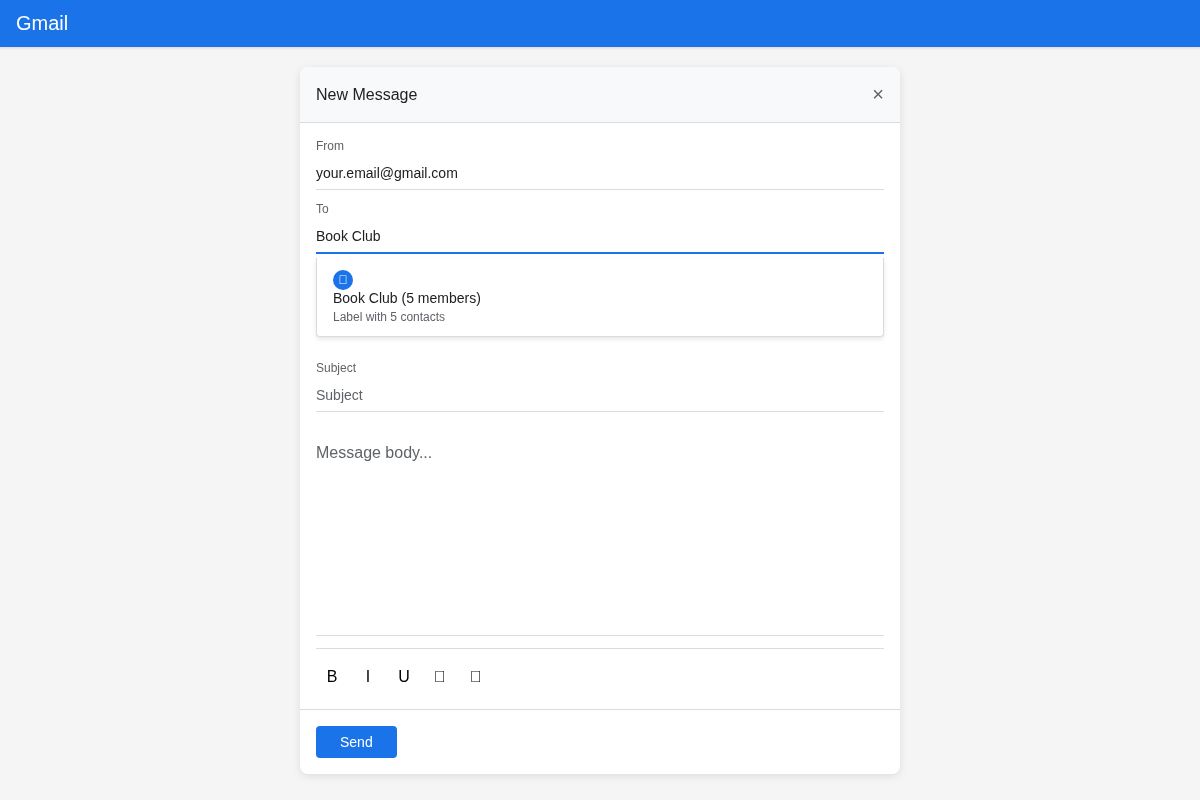
Write your subject line and message as normal, then hit Send. Every person in that label will receive the email.
A Quick Note About Privacy
When you send a group email this way, every recipient can see every other recipient's email address in the To field. That might be fine for a close-knit team, but it can be a problem for larger groups where people may not want their address shared.
The workaround is to use BCC. Click Bcc in the compose window, put your own address in the To field, and add the group label in the Bcc field instead. This hides everyone's addresses from each other.
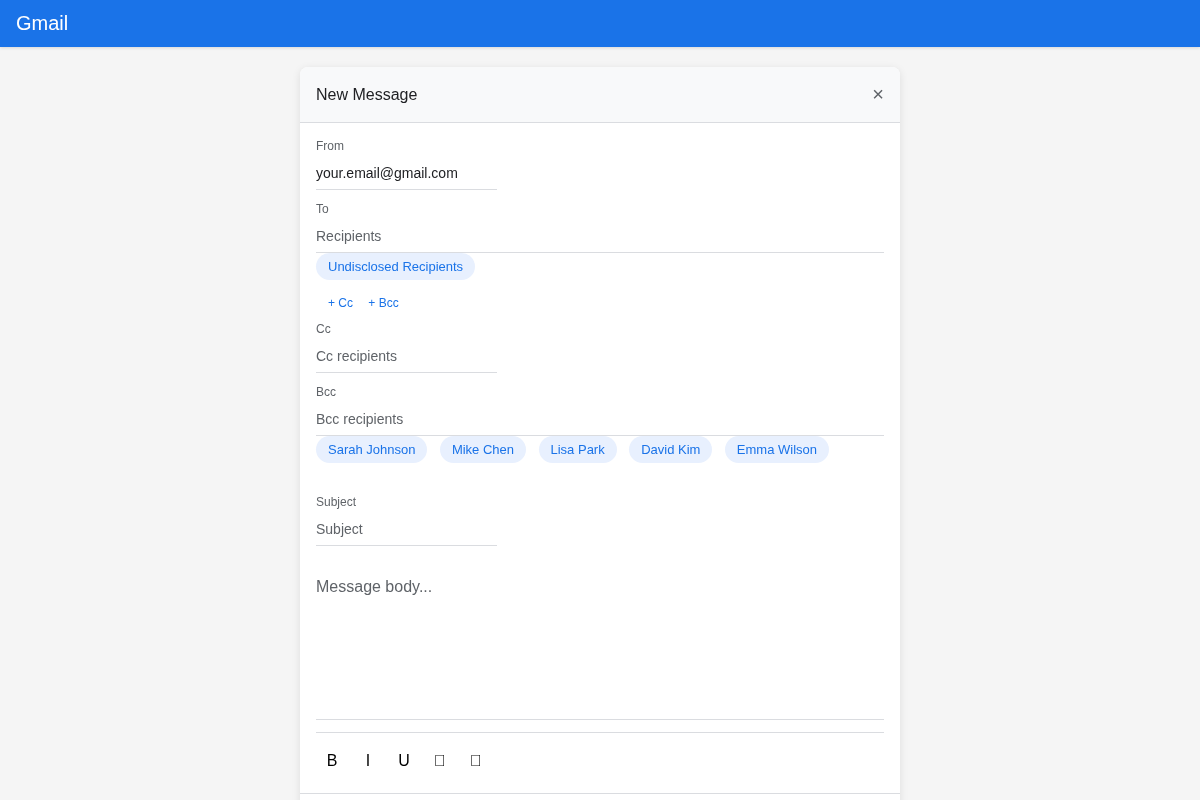
The catch is that replies to a BCC email go only to you, not the group. BCC protects privacy, but it kills group conversation. If you need both privacy and proper group replies, you need a different approach.
What About Google Groups?
You might have come across Google Groups
as another option. It does let you create a true group address (for example,
bookclub@googlegroups.com) and supports reply-to-group and a message archive.
However, Google Groups is really designed for Google Workspace organisations. For informal groups, the admin and permission setup is often more complex than needed, and non-Google members can have a rougher experience. It is powerful, but often more than most groups need for simple group email.
If you want a deeper breakdown, see our Google Groups alternative comparison.
The Limitations of Gmail Group Emails
Gmail labels work well for occasional one-way emails. But as soon as your group communicates regularly, the rough edges show up.
Replies do not go to the group. Replies go only to the original sender.
You have to manage membership manually. You must update the label yourself as people join or leave.
There is no unsubscribe option. People cannot remove themselves without asking you.
No shared archive. New members cannot catch up on past conversations.
No moderation tools. You cannot approve messages or restrict who can post.
Privacy trade-off. Either expose addresses in To, or use BCC and lose group replies.
Gmail is an email client, not a group communication platform. For quick one-off updates it is fine, but these limits add up fast for active groups. None of these are Gmail bugs - it was never meant to be a full group communication tool.
A Better Alternative for Ongoing Groups
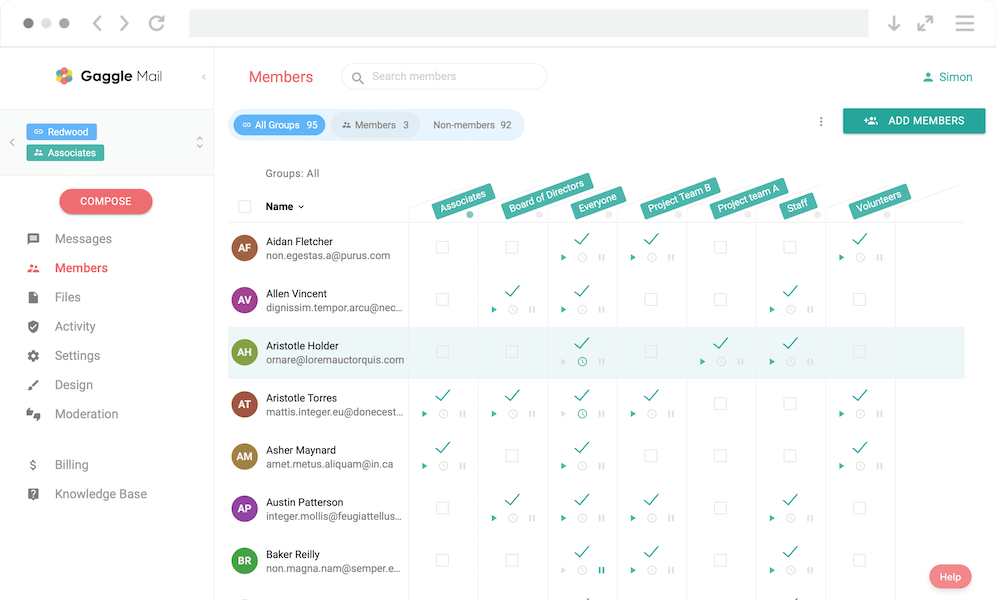
If your group needs replies that go to everyone, self-service membership, a shared archive, and proper privacy - all without Google Groups complexity - it is worth using a purpose-built group email tool.
Gaggle Mail
gives your group one address (for example, bookclub@gaggle.email) and includes:
- Replies to the whole group (or sender-only if you prefer), so you do not have to forward replies manually
- Self-service membership so members can join or leave on their own
- Private-by-default delivery with no member address exposure
- Shared archive so new members can catch up quickly
- Built-in moderation and optional digests
It works with any email provider, so members can keep using Gmail, Outlook, Yahoo, or any other inbox they already use. They do not need to switch providers or sign up for anything new.
How Does It Compare?
Here is a quick side-by-side comparison:
| Feature | Gmail Contact Labels | Google Groups | Gaggle Mail |
|---|---|---|---|
| Send to group with one address | No (label shortcut) | Yes | Yes |
| Replies go to the group | No | Yes | Yes (configurable) |
| Self-service join/leave | No | Limited | Yes |
| Member privacy | Only with BCC | Configurable | Yes, always |
| Shared message archive | No | Yes | Yes |
| Moderation | No | Yes (complex) | Yes (simple) |
| Digest emails | No | Yes | Yes |
| Works with any email client | Gmail only | Mostly Google | Yes |
| Easy to set up | Moderate | Difficult | Very easy |
For a deeper look at alternatives, see our full comparison of group email services.
Which Approach Is Right for You?
If you just need to email the same 5-10 people once in a while and replies are not important, Gmail contact labels are a perfectly good solution. Follow the setup steps above and you are done in a few minutes.
If your group communicates regularly, has more members, or needs things like replies, privacy, archives, or self-service membership, you will save time and hassle with a dedicated group email platform.
Try Gaggle Mail free - it takes about two minutes to set up, and members do not need to create an account or learn anything new.
Frequently asked questions
What people are saying
Join thousands of communities using Gaggle Mail
“Gaggle Mail transformed how our neighborhood association communicates. It's so intuitive that even our less tech-savvy members participate actively. The moderation tools are exactly what we needed.“

“Overall technical execution and ease-of-use make Gaggle Mail the best option in the market.“

“Solid, stable. Just works. Great interface. Works for everything we need.“

“Amazing alternative to google groups, which forces you to have a gmail account and is complex to join as a user.“

“Your service never fails and when we have questions, you respond immediately!“

“Outstanding service. Whenever we have a question or face an obstacle someone is there to assist.“

“It's straightforward. It works. No advertising banners. We love it!“

“The customer support is outstanding. Any questions we had while setting up our alumni network were answered promptly and thoroughly.“

“I love Gaggle Mail because I have never had a problem. It just works.“

“The migration from our old listserv was smooth and the interface is modern and clean. Our members adapted to it immediately.“

“I use it for a Boy Scout troop. I tried a couple of other applications and yours is by far the best.“

Need a better way to run group email? Get started for free today.
Create a real group email address with privacy, replies, moderation, and archive built in.
Get Started