Private Group Email Guide
How to Send a Group Email Without Showing All Recipients
You need to email a group - a neighbourhood watch, a club, a parent mailing list, a church group - but putting everyone's address in the To field means every recipient can see every other recipient's email.
That's a privacy issue, it looks unprofessional, and depending on your group, it might even violate data protection rules.
So how do you send a group email while keeping everyone's address private?
There are three approaches, ranging from a quick workaround to the proper long-term solution. We cover all three so you can pick what makes sense for your situation.
Method 1: Use BCC (Blind Carbon Copy)
BCC is the fastest way to hide recipient addresses. Recipients in BCC receive the message but do not see each other.
What Is BCC and How Does It Work?
Every email has three address fields: To, Cc (carbon copy), and Bcc (blind carbon copy). People in To and Cc can see each other. People in Bcc are invisible to everyone, including each other.
BCC is the go-to method for sending a group email without exposing addresses.
How to Use BCC in Gmail
- Open Gmail and click Compose to start a new email.
- In the compose window, click Bcc on the right side of the To field.
- The BCC field appears below To and Cc.
- Put your own email address in To.
- Add recipients in Bcc, either as individual addresses or a contact label if you already created a group email in Gmail.
- Write your subject and message, then click Send.
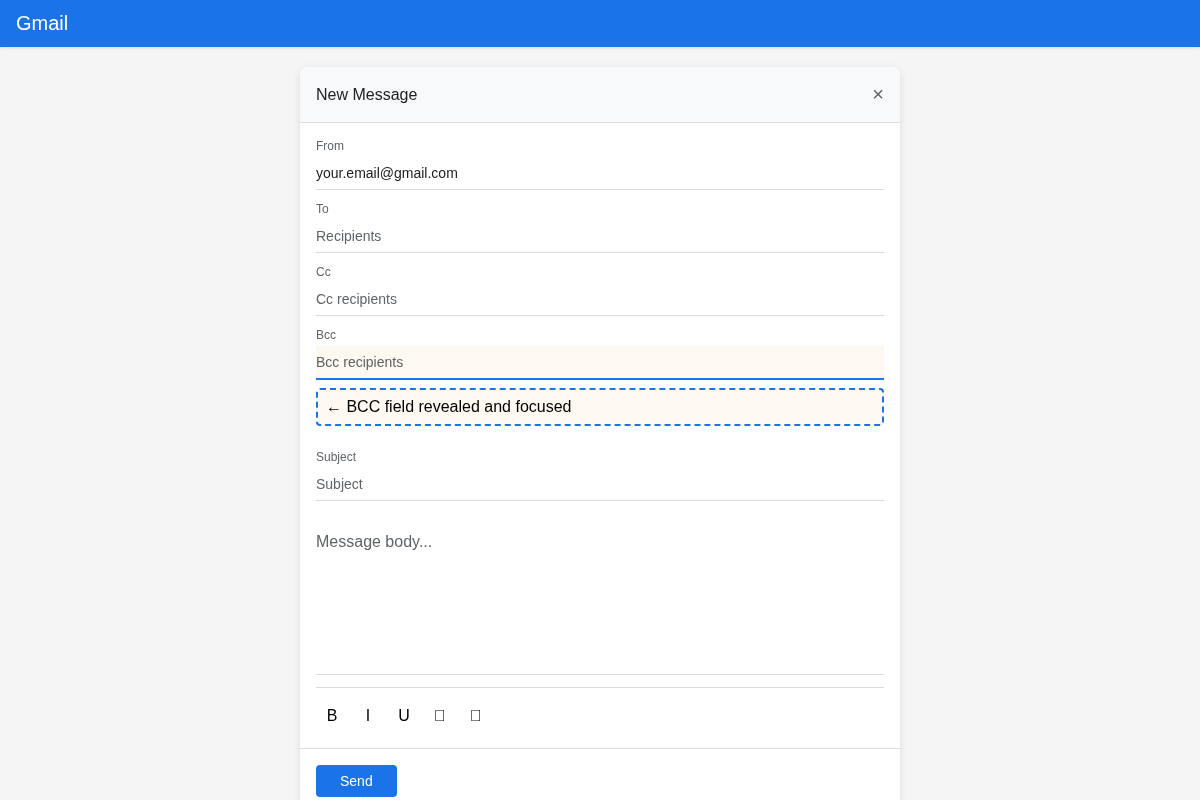
Each recipient sees only your address in To, not who else received the email.
How to Use BCC in Outlook
The BCC field is hidden by default in Outlook, which catches a lot of people off guard.
In Outlook on the web (outlook.com):
- Click New mail.
- Click Bcc beside Cc.
- Put your own email in To and recipients in Bcc.
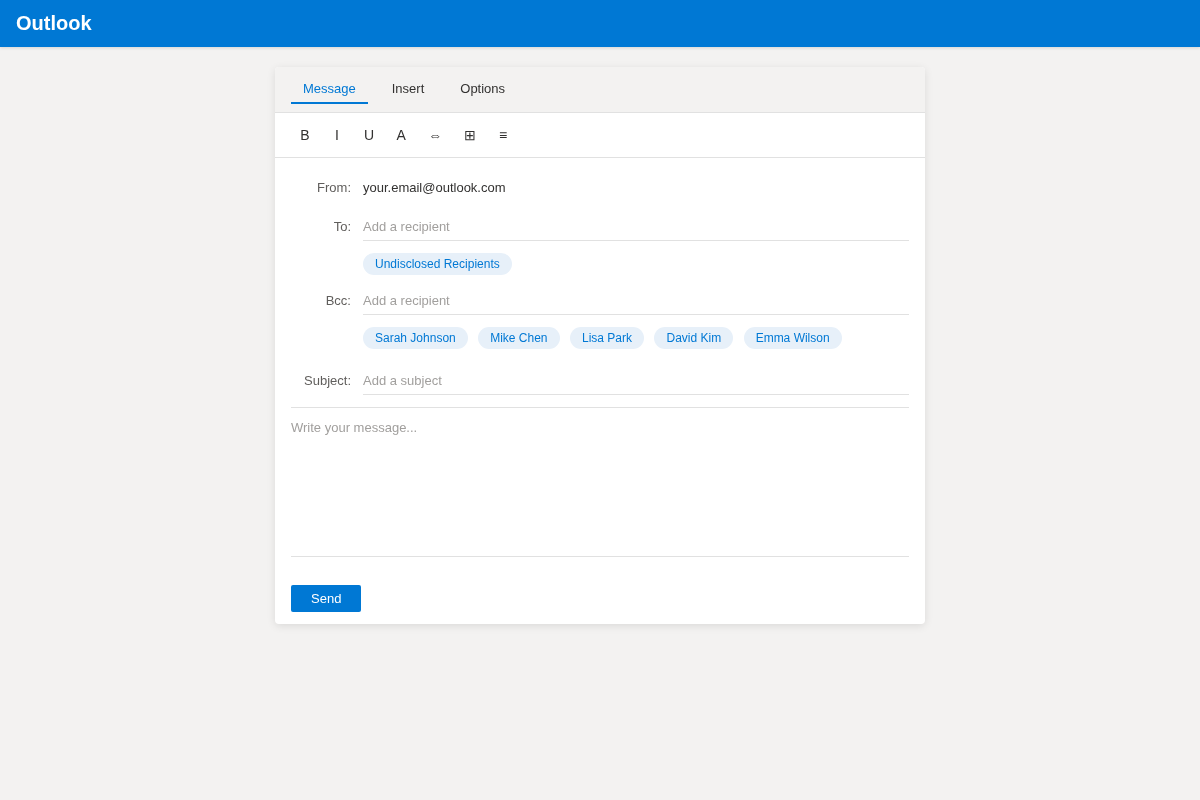
In Outlook desktop (classic):
- Click New Email.
- Open the Options tab, then click Bcc.
- Add your own address in To and recipients in Bcc.
If you've created a distribution list in Outlook, you can type the group name in Bcc to add all members at once.
Key limitation
The Limitations of BCC
BCC works for one-off email, but it has real drawbacks for ongoing communication:
Replies only go to you. Recipients cannot reply to the whole group.
You manage the list manually every time. Unless you set up a separate contact group or label, you are pasting addresses for every send.
Spam filters are suspicious of BCC. Some providers flag large BCC sends as potential spam.
No unsubscribe, no archive, no management. Everything remains manual from start to finish.
Method 2: The “Undisclosed Recipients” Trick in Outlook
You may have seen emails showing "Undisclosed Recipients" in To. This is a polished variation of BCC, especially common in Outlook.
How to Set It Up
- Create a contact named Undisclosed Recipients using your own email address.
- Save the contact.
- Use that contact in To when composing.
- Add actual recipients in Bcc.
Recipients see "Undisclosed Recipients" in To instead of your personal address, which looks cleaner and signals private sending.
Key limitation
Same Limitations Apply
This is still BCC with a cosmetic improvement. The same downsides remain: no group replies, no member management, no archive, and increasing spam risk with larger groups.
Method 3: Use a Dedicated Group Email Tool
If you email the same group regularly and need privacy, replies, and management, use a tool built for this.
A dedicated group email tool gives your group one shared address, like
neighbourhood@gaggle.email. Members email that address and the tool delivers to everyone
while keeping member addresses private by default.
How it helps
How Gaggle Mail Handles This
Free plan available
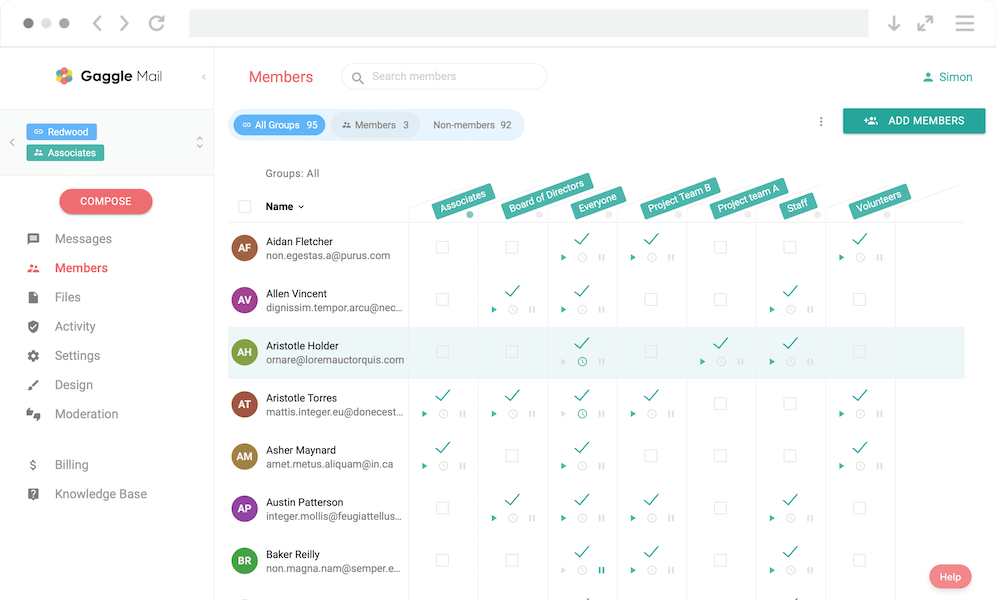
Gaggle Mail has a free plan and is built specifically for group email.
- Privacy is automatic. Member addresses are never visible to each other.
- Replies can go to the group. Configure whether replies go to everyone or only the sender.
- Members can self-manage. People can join and leave without manual list maintenance.
- Shared archive. Messages are stored in a browsable history.
- Moderation. You can approve messages before delivery.
- Digest option. Members can choose daily or weekly summaries.
It works with Gmail, Outlook, Yahoo, and other providers. Members keep their existing inbox.
How Does It Compare?
| Feature | Gaggle Mail | BCC | Undisclosed Recipients |
|---|---|---|---|
| Hides recipient addresses | ✓ (automatic) | ✓ | ✓ |
| Replies go to the group | ✓ (configurable) | ✗ | ✗ |
| Self-service join/leave | ✓ | ✗ | ✗ |
| Shared message archive | ✓ | ✗ | ✗ |
| Spam risk with large groups | Low | High | High |
| Moderation | ✓ | ✗ | ✗ |
| Digest emails | ✓ | ✗ | ✗ |
| Setup time | 2 minutes | None | 2 minutes |
| Works for ongoing groups | ✓ | Poorly | Poorly |
For more detail on alternatives, see our comparison of group email services.
What to do next
If you send occasional one-off updates, BCC is usually enough. For ongoing group communication, a dedicated group email tool gives you private delivery, reliable replies to the full group, and less manual list maintenance.
For a full breakdown of all group email platforms, see our comparison of group email services.
Try Gaggle Mail free and set up a private group address in about two minutes.
Frequently asked questions
What people are saying
Join thousands of communities using Gaggle Mail
“Gaggle Mail transformed how our neighborhood association communicates. It's so intuitive that even our less tech-savvy members participate actively. The moderation tools are exactly what we needed.“

“Overall technical execution and ease-of-use make Gaggle Mail the best option in the market.“

“Solid, stable. Just works. Great interface. Works for everything we need.“

“Amazing alternative to google groups, which forces you to have a gmail account and is complex to join as a user.“

“Your service never fails and when we have questions, you respond immediately!“

“Outstanding service. Whenever we have a question or face an obstacle someone is there to assist.“

“It's straightforward. It works. No advertising banners. We love it!“

“The customer support is outstanding. Any questions we had while setting up our alumni network were answered promptly and thoroughly.“

“I love Gaggle Mail because I have never had a problem. It just works.“

“The migration from our old listserv was smooth and the interface is modern and clean. Our members adapted to it immediately.“

“I use it for a Boy Scout troop. I tried a couple of other applications and yours is by far the best.“